For file and folder encryption, there are many tools that will do the job. Â File encryption can be saved to a thumb drive, hard drive or SD Card. Â One free, open-source and useful method of encrypting data is TrueCrypt.
TrueCrypt is freeware that creates a virtual encrypted disk on a file, partition or entire disk drive. Â It works on Windows, OS and Linux.
What TrueCrypt does is to create an encrypted area of storage (and encrypted volume) where you can drag unencrypted data for encryption. Â This is known as one-the-fly encryption (OTFE aka real time encryption).
To install TrueCrypt go to http://www.truecrypt.org/downloads

Once you Double Click the TrueCrypt icon, you will see this:
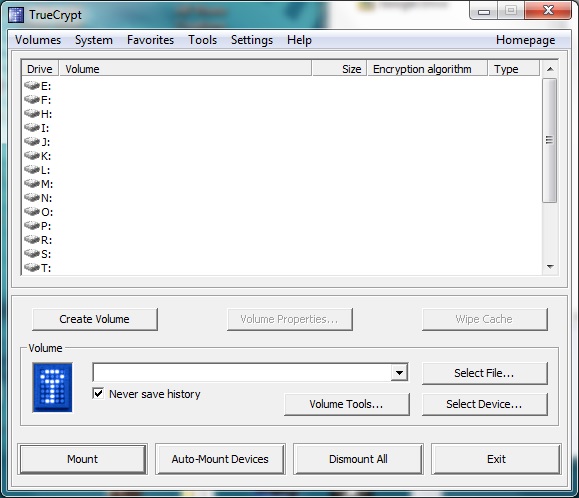
Click the “Create Volume†button for creating the encrypted volume.  This volume will allow file encryption (or folder encryption).
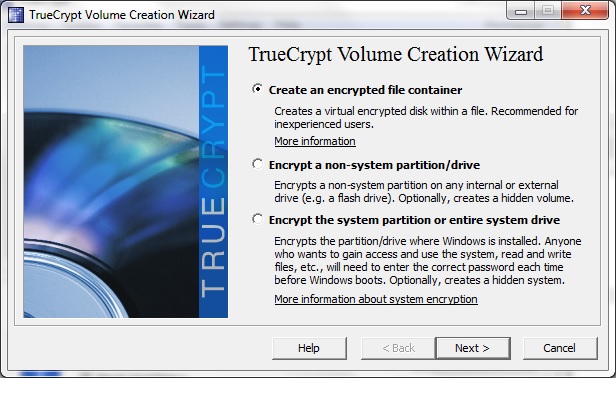
You will see the “TrueCrypt Volume Creation Wizardâ€.  Since we want file encryption and/or folder encryption, we will select “Create an encrypted file containerâ€.  Note that TrueCrypt also allows full partition and full system drive encryption.
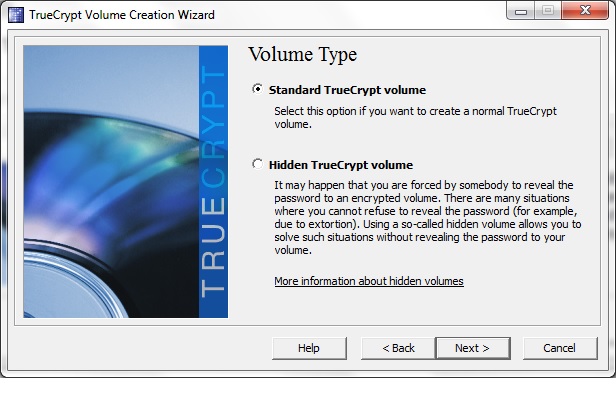
We will choose “Standard TrueCrypt volume†and select next on the TrueCrypt Volume Creation Wizard.
note: The TrueCrypt Volume Creation Wizard allows you to hide the data or just encrypt with a password. Â With a higher need for privacy, you may need to hide the fact that there is file encryption at all so no one even questions you about why its encrypted. Â If its not hidden, others will see a file that cannot be opened with any application they know of. Â And even if they do know that it must be decrypted to view the contents, they must have the password.
Ready to actually get the RMF/ISSO job?
Go from reading about the Risk Management Framework to doing it — with the full video course, the books, and a community of GRC professionals taught by Bruce Brown (CISSP, CGRC).
Get the RMF ISSO Foundations course → Browse the RMF & GRC books Join the free GRC community
Leave a Reply